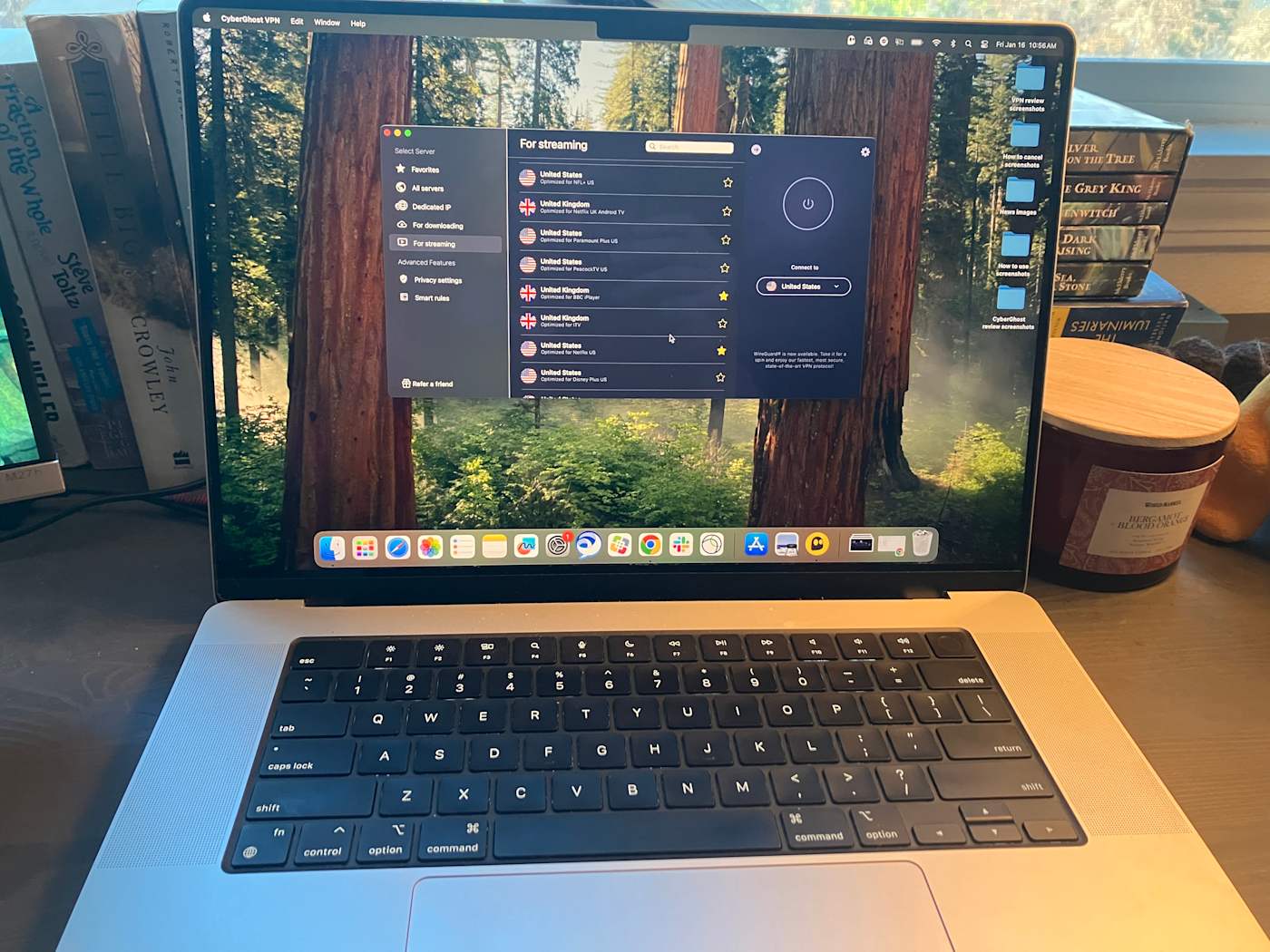
One of the disconcerting things about using a virtual private network (VPN) is that it can be hard to tell when it’s doing its job. The best VPNs all work in the background to keep your IP address hidden and your communications with their servers encrypted. The better the VPN, the less you notice it, which can make a top-performing VPN feel (uncomfortably) like one that isn’t working at all.
Luckily, you’ve got options for checking whether your VPN is working — other than just taking the app at its word. In this article, I’ll cover the basics, then go through five different tests you can run to make sure you’re actually using an encrypted VPN server. For each test, I’ll explain what kind of problem it’s looking for, how to run it and what to do in case it fails.
Make sure your VPN is turned on
Before you do anything else, though, it’s not a bad idea to check your VPN app and make sure you remembered to connect. It’s all too easy to open up the client app, choose a server, tweak some preferences and feel like your work is done. On top of that, we don’t always remember to tell VPN beginners that simply opening the client isn’t enough.
To check that your VPN is turned on, open the app on your desktop or mobile home screen. Each VPN designs its apps differently, but common signs include the color green, the word Connected and information on what server location you’re connected to.
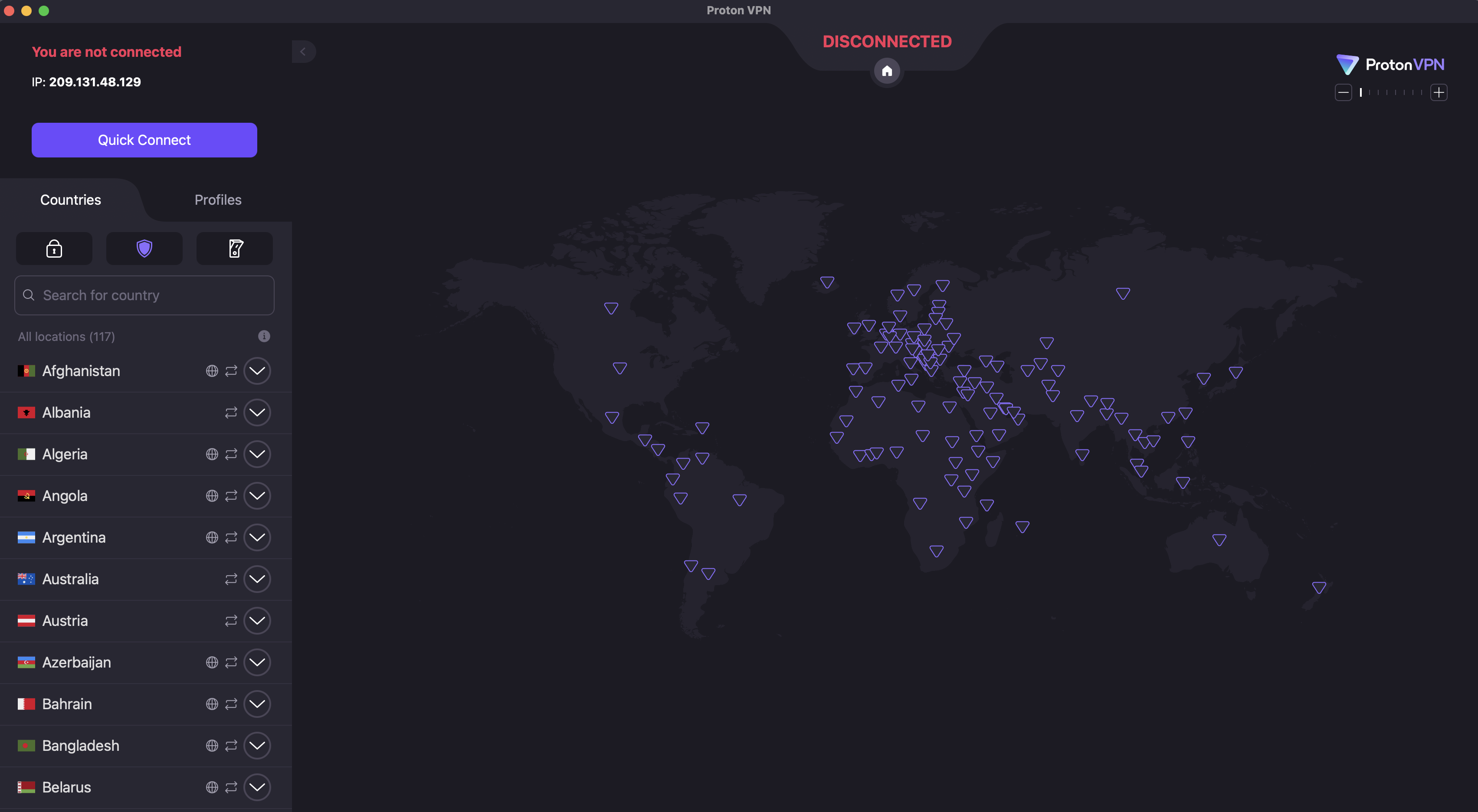
If you don’t see anything like that, click the On button, which should be on the first page that appears when you log into the app. Most VPNs also connect whenever you click the name of a server location.
For those of you on iPhone or iPad, I’ve just written an explainer on how to turn a VPN off and on. For all the tests I’ll discuss across the rest of this article, make sure you’re connected to a VPN server before you run them. Also, make sure your internet connection is active — a VPN can only work when there’s internet.
5 tests to check if your VPN works
Each of these tests investigates a different reason your VPN might not be working. We’ll start by looking for connection problems that might not be obvious, check for DNS leaks, WebRTC leaks and IPv6 leaks, then finally make sure an apparently active VPN is managing to change your virtual location.
1. Has your IP address changed?
Websites and internet service providers (ISPs) use IP addresses to identify devices and their owners online. A VPN’s most important job is to change your IP address to one matching its own server, which disassociates your identity from your online activities. Not doing this indicates a failure on a fundamental level: either the VPN says it’s connected when it isn’t, or its technology is active but somehow not sending you through the proper encrypted tunnel.
To check whether your VPN has changed your IP address, start by going to an IP address checker like whatismyipaddress.com or ipleak.net. This will show you the public IP address that everyone sees when you get online without a VPN, including the ISP that holds it and the geographic location it’s associated with. Write that down or take a screenshot.
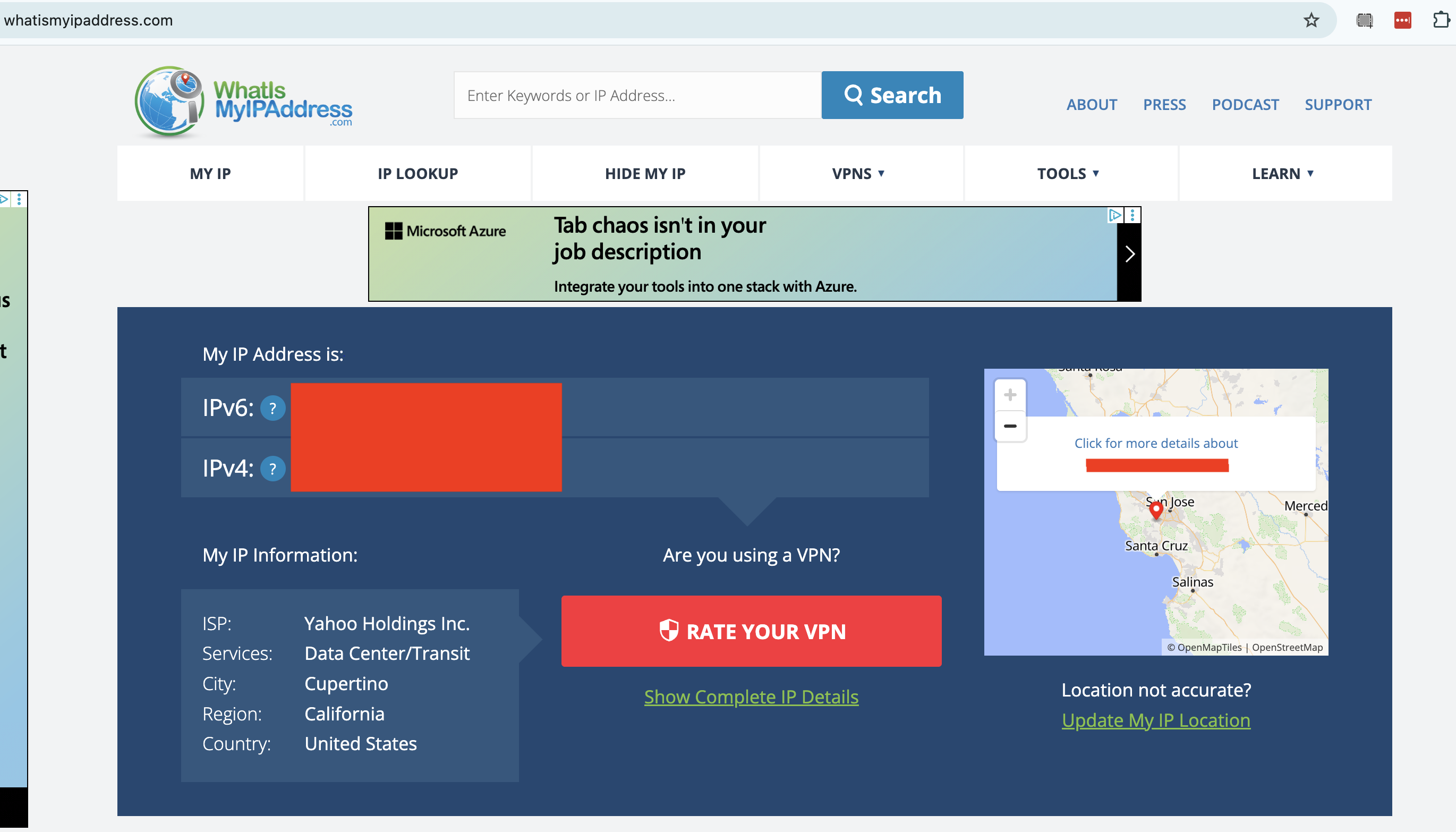
Next, connect to your VPN. Remember the location you connect to, and note down the new server IP address if the VPN tells you what it is. Go back to your IP tester tool and refresh the page. You should now see an IP address and location that match the one you connected to through the VPN, including a different ISP.
If your IP address is the same as before, your VPN isn’t working. To fix this, try disconnecting from the server, waiting about 10 seconds, then connecting to the same location and trying the test again. This will show you whether the problem was with one individual server or an entire location.
If the problem persists, try a different server location, then a different VPN protocol. If it’s still leaking, try restarting your VPN client, your device and your modem (in that order). This should fix the problem, but if it doesn’t, move on to the remaining tests or get in touch with the VPN’s tech support.
2. Are you leaking DNS requests?
A domain name system (DNS) server is an important step in getting a website to appear on your browser. DNS holds the information that connects URLs to the IP addresses of destination servers. If a VPN client lets your device contact a DNS server owned by your internet service provider without routing it through an encrypted tunnel first, the DNS request might reveal your real IP address to the ISP.
You can check for DNS leaks by connecting to your VPN, then going to dnsleaktest.com or another tool of your choice. The tester sends several innocuous DNS requests, then scans to see which servers resolve them. If you see your real ISP at all, you’ve got DNS leaks.
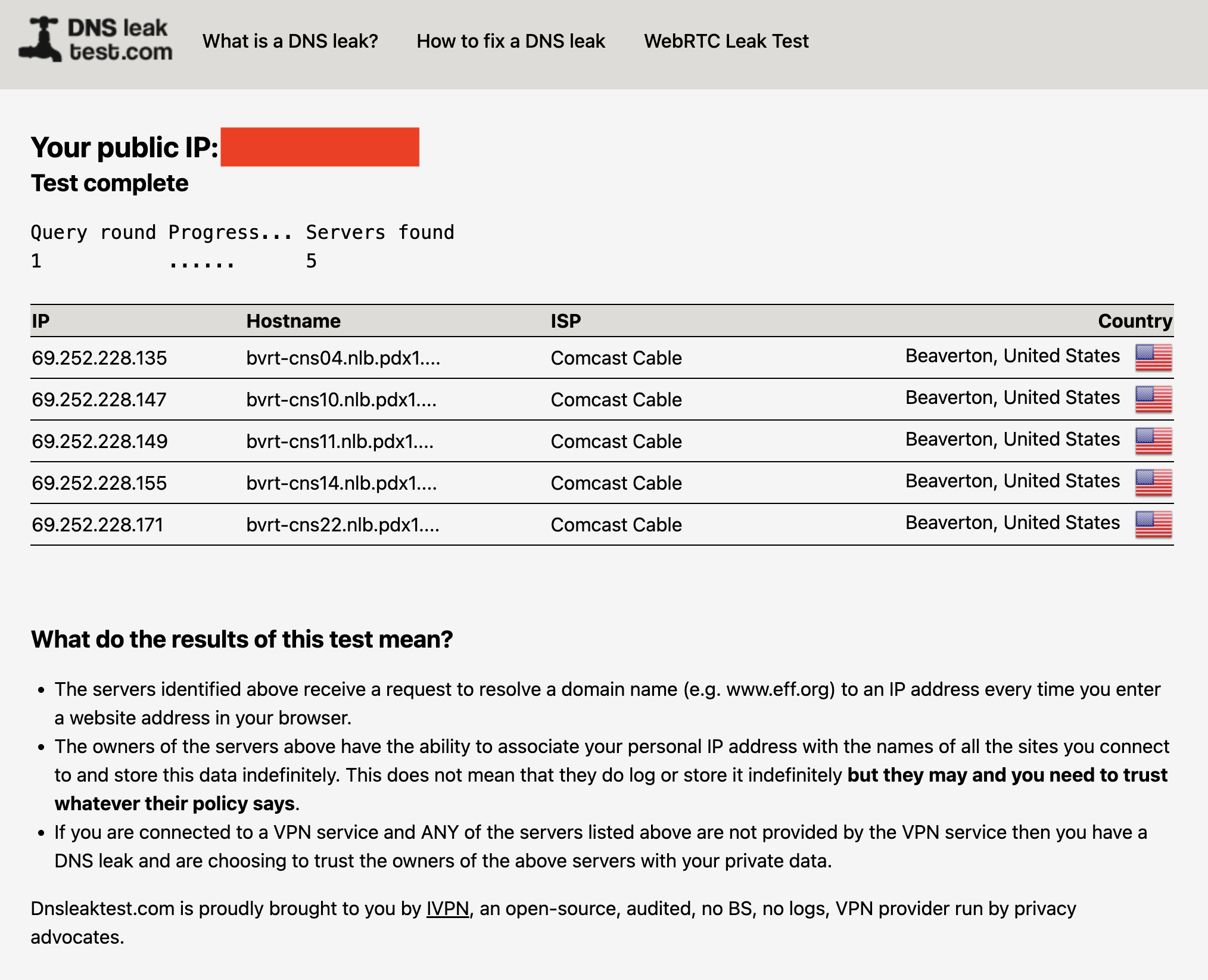
The fix for DNS leaks is more intensive than the fixes in step #1. Check your VPN’s control panel to activate any DNS leak protections and try again. IPv6 leaks can also appear as DNS leaks, so try disabling IPv6 in your browser (see #4 below for instructions). If you keep seeing leaks, you can also try clearing your computer’s DNS cache.
Here’s how to do that. On Windows, go to the Command Prompt (on Windows 10) or the Windows Terminal (on Windows 11). Enter the phrase ipconfig/flushdns. On Mac, open Terminal from the Utilities folder, then paste in the phrase sudo dscacheutil -flushcache; sudo killall -HUP mDNSResponder and hit Enter. Test the VPN once more to see if it’s still leaking.
3. Are you leaking information through WebRTC?
WebRTC, which stands for Web Real-Time Communication, is a technology that lets browsers exchange information directly with each other. This is useful for text and video chats, streaming and more, but it’s also a potential security risk. WebRTC can serve as a backchannel that inadvertently sends your real IP address outside the VPN tunnel.
It’s pretty easy to test for WebRTC leaks. I recommend the tool ipleak.net, which checks for them as a matter of course. You can also use browserleaks.com/webrtc to run a test that’s particular to this kind of leak. These tools establish dummy connections through WebRTC, then test to see if the VPN still works when they’re active. As usual, if you see your real IP address, there’s a problem.
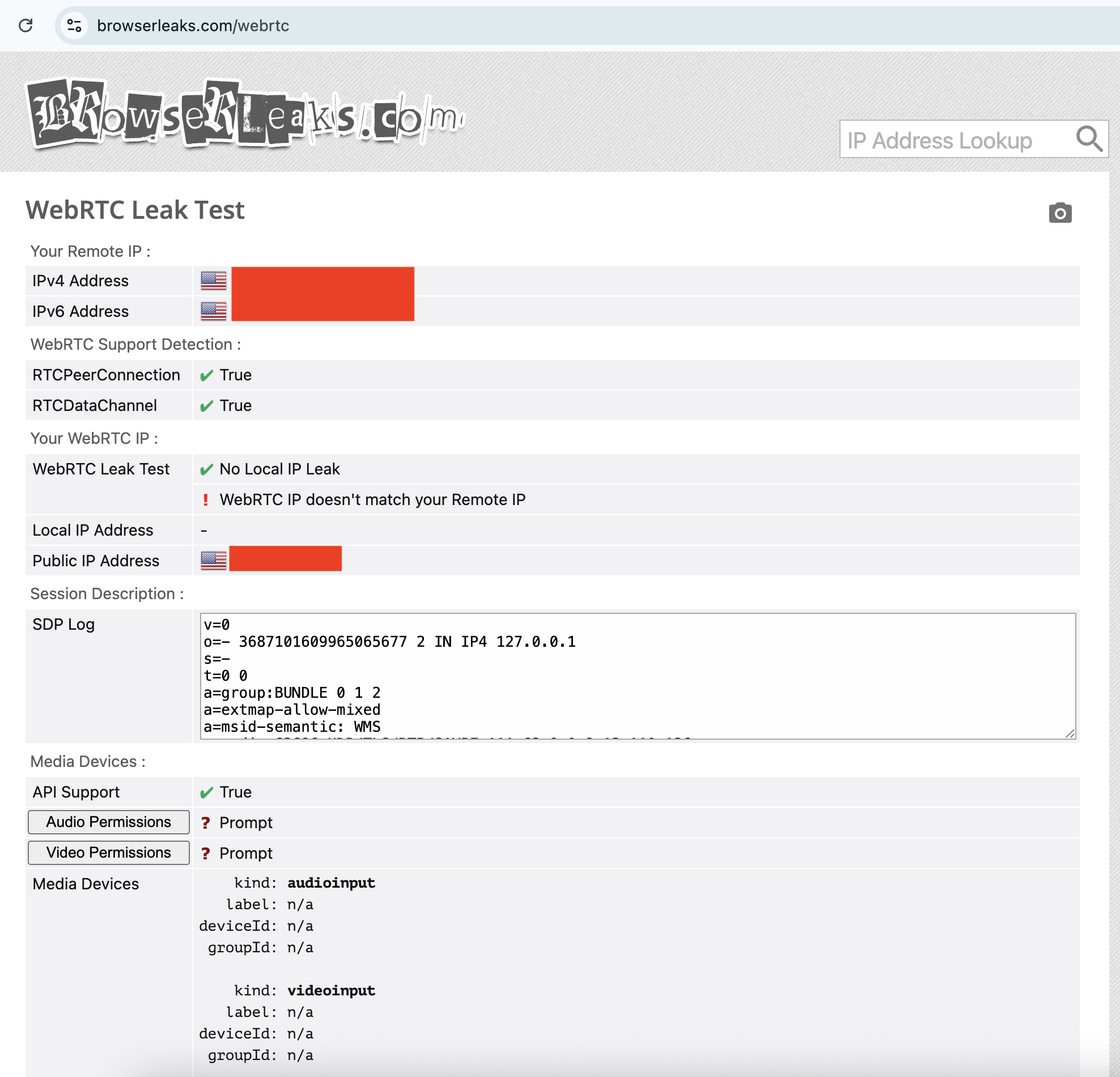
The fixes for a WebRTC leak are the usual ones: try different servers, locations and protocols, reset your VPN, device and modem, then try another VPN provider. However, if nothing is working, you can also disable WebRTC on your browser altogether. This means you won’t be able to do any real-time chatting (that’s Zoom, Google Meet, Teams and so on), so it’s a last-resort solution.
To disable WebRTC on Firefox, type about:config in the URL bar, click the message to accept the risk, type media.peerconnection.enabled in the search bar, then double-click the word True to change it to False. To turn WebRTC back on, just double-click False again.
On Edge, you can disable WebRTC by entering edge://flags in the URL bar, scrolling down to the option “Anonymize local IPs exposed by WebRTC” and making sure the dropdown next to it is set to Enable. There’s no built-in way to turn off WebRTC on Chrome, but you can install the WebRTC Control extension to switch it off and on yourself.
4. Is your IPv6 address leaking?
Next up, it’s possible that your real location is leaking through your IPv6 address, not IPv4. To make a long explanation short, IPv6 is a new way of formatting IP addresses that leaves more options available for the future. Since we haven’t yet hit the crisis point of IPv4 shortage, very few websites are restricted to IPv6 alone.
The problem is that most VPN apps were designed in the IPv4 era and aren’t built to protect IPv6 traffic. There are some exceptions, including NordVPN, but most VPNs block IPv6 traffic completely rather than retrofit themselves to work with it. However, if a VPN of that sort isn’t blocking IPv6 entirely, your IPv6 address and associated location can leak.
Any IP address checker can reveal an IPv6 leak, but you can find a specific test at test-ipv6.com. This site runs several exams that look for IPv6 readiness, but the most important line is the one that shows your current IPv6 address. This will probably say you don’t have one, since most ISPs don’t work through IPv6 yet — but if you do have one, it should match your active VPN’s location, not your real one.
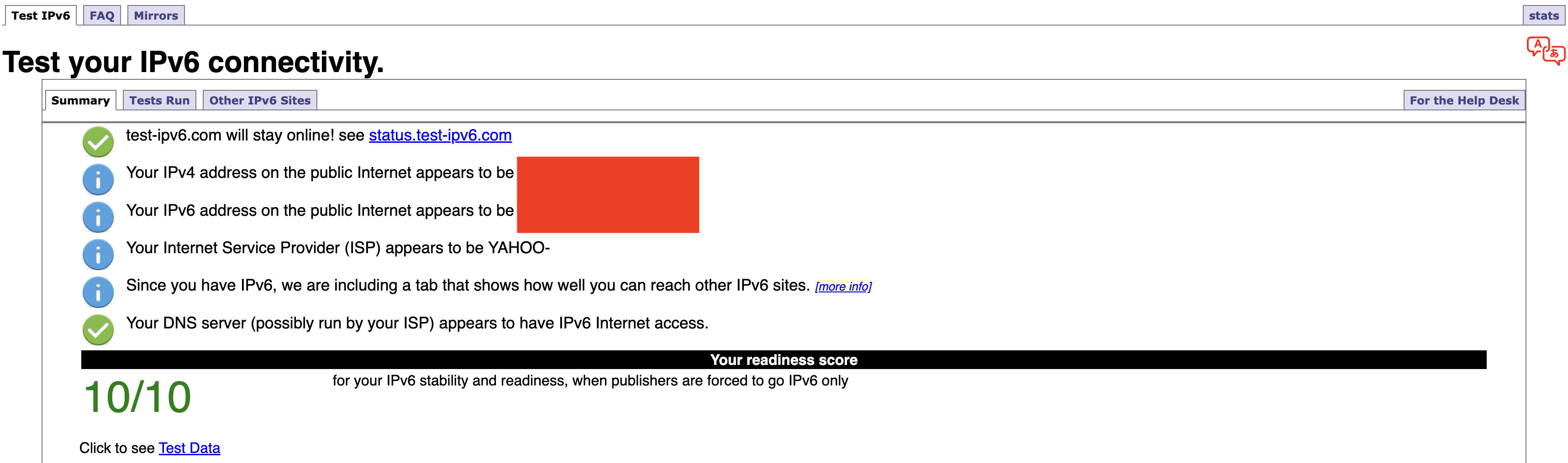
Should it turn out that you’re leaking IPv6 requests, the easiest solution is to disable IPv6 on your computer. On Windows, you can do this through the network adapter options page of your control panel. Here’s how to get there:
-
Windows 10: Start -> Settings -> Network & internet -> Status -> Change -> Advanced network settings -> Change adapter options.
-
Windows 11: Settings app -> Network & internet -> Advanced network settings -> Related settings -> More network adapter options.
On both OSes, finish the job by right-clicking the name of your internet connection, selecting Properties from the dropdown and unchecking the box next to Internet Protocol Version 6. Of course, you can always switch to another VPN that blocks IPv6 altogether, but you might find that to be a bigger hassle.
If you’re on Mac, open System Settings, click the Network tab and then click the Details… button next to your network name. In the new window, click the TCP/IP tab on the left, find the entry labeled Configure IPv6 and set the dropdown to Link-Local Only.
5. Do streaming sites show different content?
A VPN can be working perfectly and still fail to unblock streaming sites. Netflix, HBO Max and the others block VPN traffic because VPNs can make them show material in regions where they don’t hold the copyright. To avoid legal trouble, they set up their firewalls to block IP addresses known to belong to VPN servers.
If your VPN can’t get into a streaming platform, it’ll usually be obvious; the site will either display a proxy error message or simply refuse to load. However, in rare cases, the streaming site will load fine but show you the same shows you normally see. This indicates that you might be dealing with a VPN leak.
If that happens, follow the usual steps. Disconnect and reconnect to the same location to get a different server, then try different server locations. It’s also possible that the streaming site is getting your real location from your browser cache, so if the problem persists, clear your cache and cookies and try again.
How to test a VPN kill switch
There’s one more important step to make sure your VPN is working: test the kill switch. This common feature cuts off your internet connection if you lose touch with your VPN server. With your kill switch active, you shouldn’t be at any risk of accidentally broadcasting your real IP address, location or online activity.
To test your kill switch, you’ll need to simulate an abrupt loss of VPN connectivity. Open your VPN, make sure the kill switch is turned on, then connect to a server. Next, quit the VPN app without disconnecting. At this point, the kill switch should make it impossible for you to get online — if you can still browse the internet as normal, the switch might be faulty.
This article originally appeared on Engadget at https://www.engadget.com/cybersecurity/vpn/how-to-check-if-your-vpn-is-working-130000817.html?src=rss